

Google Family Link Review – The Android Native Standard
Google Family Link is the “Default Security Layer” for any child with an Android device. Unlike third-party apps that fight against the operating system, Family Link is part of the operating system. This gives it superpowers on Android that no other app has, such as the ability to Hard-Lock Devices instantly (making them unusable) and the new 2025 “School Time” mode that turns a smartphone into a “dumb phone” during class hours. While it lacks the deep text monitoring of Bark or the cross-platform flexibility of Qustodio, it is the absolute best free tool for managing apps, screen time, and location on Android phones and tablets.
VERIFIED DATA: Google Family Link is integrated directly into Android 15/16. In our 2025 GPS Tests, it offered the most accurate real-time location tracking of any free app because it leverages Google Maps’ native precision. However, parents must note: It is effectively useless for monitoring iPhones. Due to Apple’s restrictions, Family Link cannot control screen time or block apps on a child’s iOS device.
Core Control and Performance Matrix: Detailed Analysis
Family Link is a “Control” tool, not a “Spy” tool. It excels at setting boundaries (time limits, app blocks) but does not allow you to read your child’s text messages or view their social media posts.
| Control Metric | Family Link Rating | Expanded Analysis and Technical Detail |
|---|---|---|
| Screen Time | On Android, when time runs out, the phone locks completely. The child cannot open any app (except Emergency calls). It is far more effective than Apple’s “Screen Time,” which is easily bypassed by clever kids. | |
| App Management | Remote Approval | When your child tries to download a game from the Play Store, you get a notification on your phone. You can Approve or Deny it instantly. You can also hide specific apps (like YouTube) entirely. |
| Location Tracking | Google Maps Precision | It uses the native Google Maps engine to track location. You can set “Family Places” (Geofences) to get alerts when they leave school or arrive home. It also shows the device’s battery life. |
| School Time | New for 2025 | Originally a Fitbit feature, School Time is now on Android phones. It simplifies the UI to a black screen with only essential apps (Calculator, Maps) allowed during class hours. |
| Web Filtering | Chrome Only | It enforces “SafeSearch” and blocks explicit sites, but only in Google Chrome. If you allow your child to install a third-party browser (like Firefox), the filter breaks. Tip: Block all other browsers. |
| Gemini AI | AI Supervision | You can manage your teen’s access to Google’s Gemini AI. You cannot see their chats, but you can toggle their ability to use generative AI tools on or off. |
—
Family Link Architecture: How it Works
Family Link ties your child’s Google Account to yours. It is less of an “app” and more of a “permission manager” for their digital identity.
1. The “Downtime” Lock
The most feared feature by teenagers.
- Bedtime Mode: At 9:00 PM (or whenever you choose), the screen turns gray and locks. No notifications, no games. Only phone calls work.
2. YouTube Supervision
Google owns YouTube, so the integration is tight.
- Supervised Experience: You can choose between “Explore” (9+), “Explore More” (13+), or “Most of YouTube” (teens). It filters content based on community ratings, far better than a simple DNS block.
3. Identity Check (Android 15+)
A security feature that helps parents too.
- Biometric Enforcement: If the phone is outside a “Trusted Location” (like home), changing security settings or resetting the phone requires Face/Fingerprint ID. This prevents thieves—or rebellious teens—from easily wiping the phone to remove controls.
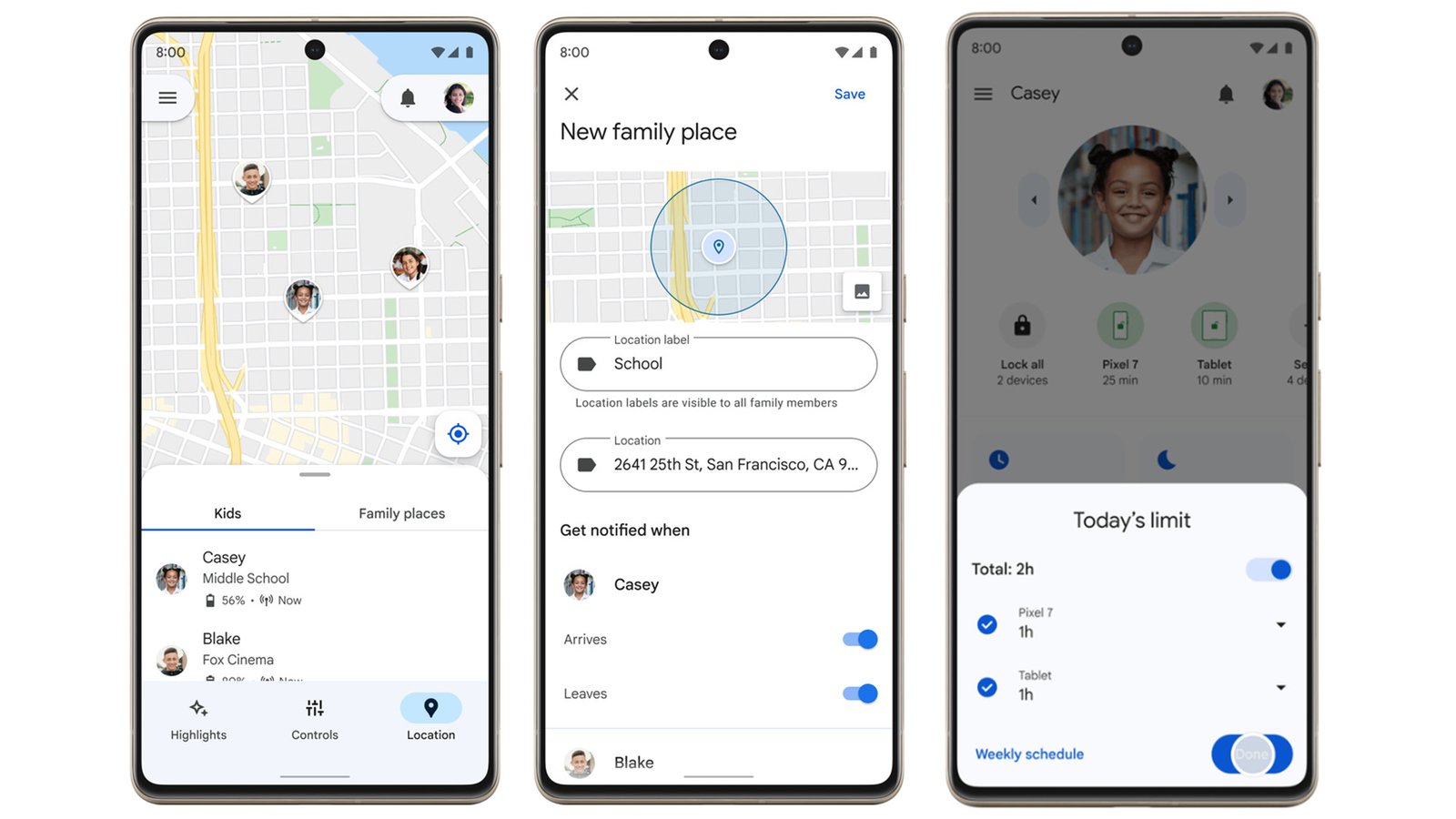
The redesigned Family Link interface (2025) features a clear “Screen Time” tab. You can see a daily breakdown of exactly how many minutes were spent on TikTok vs. Duolingo.
—
Detailed Performance Evaluation: Usability & Value
Since it is free, Family Link is the default starting point for most families. For Android users, it is often all they need.
Feature Validation Summary (2025)
- Reliability: 10/10 on Android. Because it is a system-level app, it rarely crashes and cannot be “force closed” by a child like third-party apps can.
- iOS Experience: 1/10. Do not use this if your child has an iPhone. It can only manage their Google Account settings (YouTube/Search), not the device itself.
- YouTube Filtering: Excellent. The “Supervised Mode” bridges the gap between YouTube Kids (too babyish) and regular YouTube (too risky).
- Battery Drain: Minimal. Because it relies on standard Google Play Services, it uses significantly less battery than Bark or Qustodio.
Critical Limitation: Family Link does not monitor text messages, WhatsApp, or Discord chats. If you are worried about cyberbullying or predators, you need to use this alongside a tool like Bark.
Setup & Critical Configuration Recommendations
To lock down an Android device properly:
- Create a Child Account: Don’t just log them in with your Gmail. Create a specific “Child Account” so Google knows they are under 13 (or 18).
- Block “Settings”: In the app limits, set a limit on the “Settings” app or block it entirely so they can’t try to find workarounds.
- Disallow “Unknown Sources”: Ensure they cannot install apps (APKs) from websites, bypassing the Play Store approval process.
- Enable “School Time”: Configure this immediately to ensure the phone is strictly a tool, not a toy, during school hours (e.g., 8 AM – 3 PM).
—
Who is Google Family Link Best Suited For?
- Android Families: If both you and your kids use Android, this is the smoothest, most reliable experience available.
- Younger Kids (Under 12): The strict “App Approval” system is perfect for kids getting their first phone who don’t need privacy yet.
- Budget Users: It offers 90% of the features of paid apps (Screen Time, Location, App Blocking) for $0.
- YouTube Managers: It is the only tool that allows you to manage the specific “Supervision Level” of the YouTube app.
—
Who Should Consider an Alternative?
- iPhone Users: If your child has an iPhone, Family Link is useless. Use Apple’s built-in “Screen Time” or Qustodio instead.
- Parents of Teens: The strict “Lockout” features can feel overbearing for older teens, and the lack of social media monitoring leaves a blind spot for bullying.
- Mixed Households: If you have an Android and your spouse has an iPhone, the management experience can be clunky.
—
Top Family Safety Alternatives
Bark
Primary Strength: Fills the gap Family Link misses—monitoring the content of messages and social media for bullying.
Qustodio
Primary Strength: The best cross-platform tool. If your kid has an iPad and an Android phone, Qustodio manages both seamlessly.
Apple Screen Time
Primary Strength: The “Family Link equivalent” for iOS. It is free, built-in, and the only way to effectively manage an iPhone.
—
Final Verdict: The Essential Android Companion
/ 10.0
Google Family Link is the best free parental control tool in existence—provided your child uses Android. Its integration is flawless, allowing you to remotely brick a phone at bedtime or during school with zero chance of bypass. While it lacks the advanced “Social Media Watchdog” features of paid apps like Bark, it covers the basics (Time, Apps, Location) better than anyone else. For every parent giving their child a first Android phone, Family Link is not optional; it is essential.
Conclusion
If you are in the Android ecosystem, start here. It’s free, powerful, and built by the same company that built the phone.
Take Control of Android
Set digital ground rules and guide your child to healthy habits with Google’s native tool.